Content was last updated in 06.22.10-00
‘Equipment Task View’ window provides a visual/graphical identification of order tasks against time line for each equipment on the Order.
This is designed mainly to get an understanding of the tasks associated with the broadcasting trucks on the order.
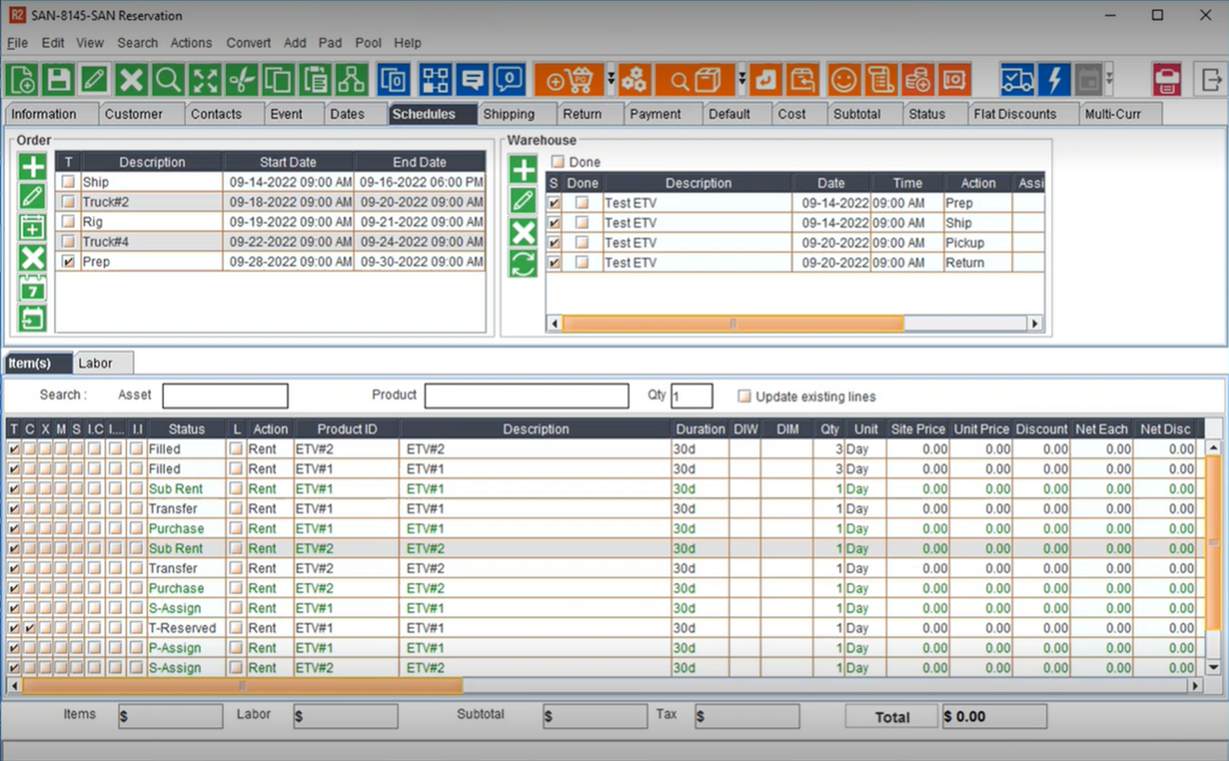
To begin, you must have an Reservation order created in Accounts with some items added which have tasks/schedules created for them.
Use any of the following access points to open the Equipment Task View window.
Inventory Search window or Module
Order > Right click > Equipment Task View
EUV / APV / AUV Window > ETV Icon
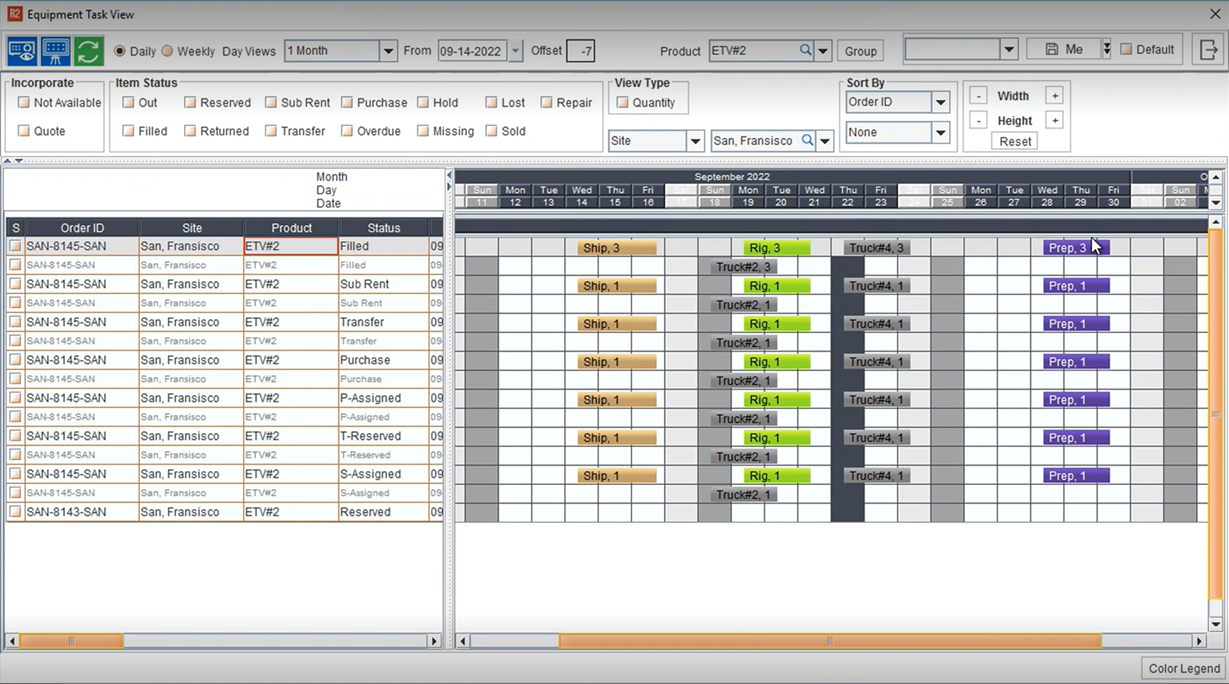
Based on what Order data (Order line items with Tasks and Schedules) was created in Accounts, the ETV window displays it accordingly.
In the ETV Window, the left-hand side panel displays Order Lines of the equipment. The lines are displayed without any grouping by either Site/Product.
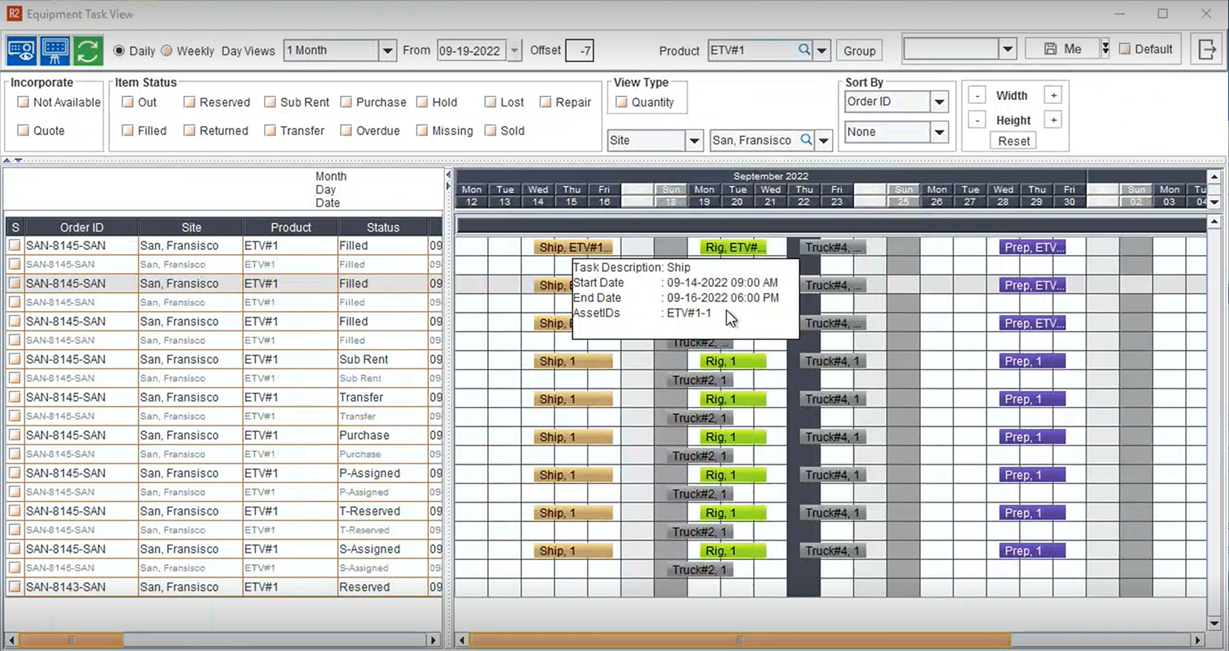
In the ETV Window, the right-hand side panel displays a timeline that shows the time bars of the selected equipment drawn against the Date and Time of the Order Tasks / Schedule Itineraries
For every task there is a separate time bar, one beside each other. If the dates are overlapping, it will show in separate row below.
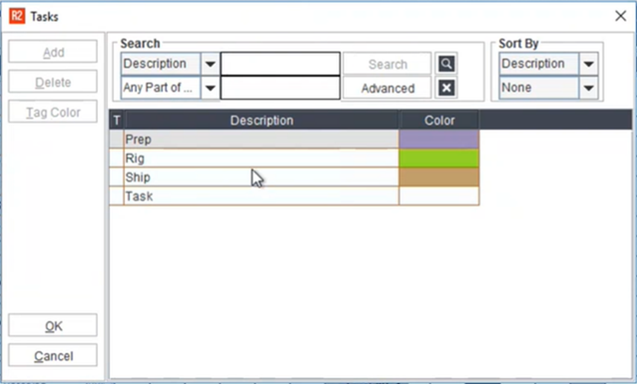
The time bars are color coded as per setup in Task master. When there is no color assigned it will show in grey.
Since the schedule itinerary is defined at order level and common for all equipment same schedule will be applicable for all equipment of the order.
When there is no schedule itinerary setup done on orders, it will not show any time bars.
|
|
Unlike EUV, this view does not show the Total Stock and Availability details. |
You can right-click on any of the lines to see the details displayed in a pop-up tool-tip. See here.
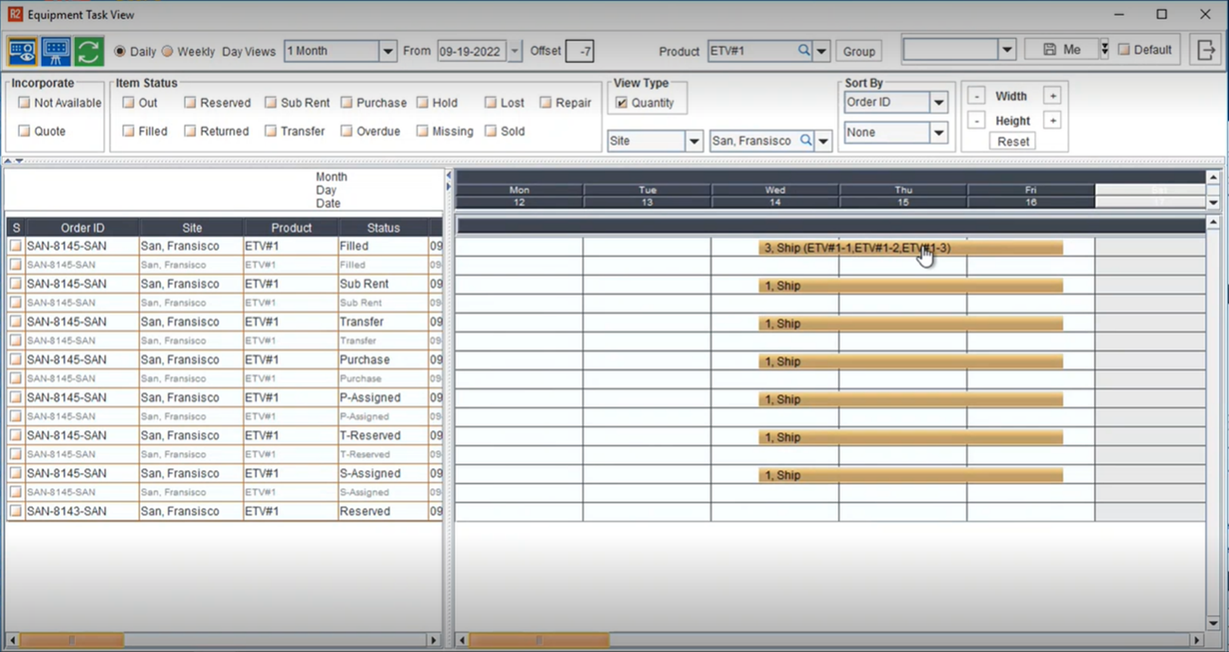
You can expand the line to the right and see more details (all lines gets expanded simultaneously). Use the Width buttons to increase/decrease the width of the window. See here.
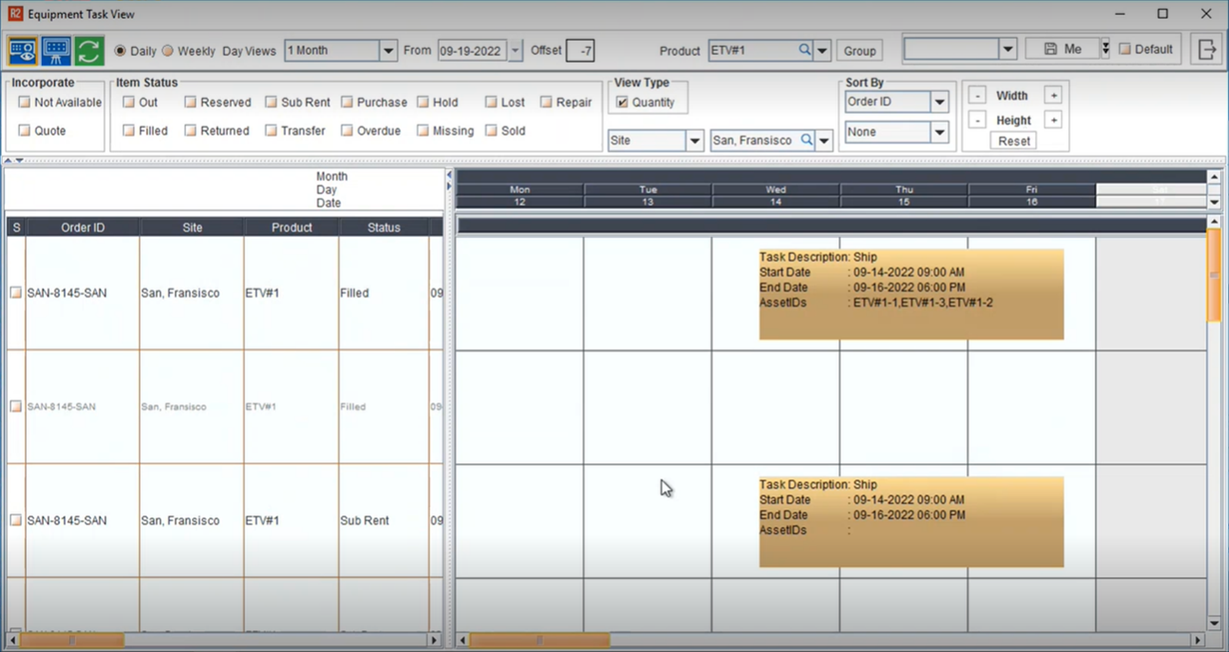
You can expand the line vertically and see more details (all lines gets expanded simultaneously). Use the Height buttons to increase/decrease the height of the window. See here.
To change back to the Original shape, click the Reset button.
The color legends can be viewed by clicking on the button at the bottom right corner of the ETV window.
The Tasks Legends are displayed in READ Only Mode. However you can Created/Edit these tasks legend from within the Schedules Tab of Accounts modules. Read more here